This is default featured slide 5 title

Go to Blogger edit html and find these sentences.Now replace these sentences with your own descriptions.This theme is Bloggerized by Lasantha Bandara - Premiumbloggertemplates.com.

Thursday, 11 April 2013

TeamViewer 7 info

Teamviewer logoSummary 
Product Name       : TeamViewer (Version 7.0.12541)
Developed By        : TeamViewer GmbH
OS Support             : Windows 7/Vista/XP, Mac OS X, Linux, Android, iOS
Released on           : Version 7.0.12541 January 20, 2012
License                    : Proprietary, Free for private usage.
Cost (INR)              : Starting from Rs. 28,500
Full Review
Teamviewer is the best application you can get for remote access of PC via Internet for file sharing and presentations.  Though it is proprietary for the corporations, it is free for the individuals, using for non-commercial purposes. It is a single package for Remote access, desktop sharing, online meetings and web conferencing. TeamViewer is the worthy tool for the remote access.

Teamviewer allows you to use it in two ways. Either you can install the application and use it, or you can simply run it by the “Quick Support” Feature. Teamviewer_Screenshot_RunBy this, accepting the EULA (End User License Agreement) lets you use the application rather than installation. It doesn’t need any administrator privileges.
The new features include VoIP audio,Video Conferencing and Integrated teleconferencing. These features gives an edge over the others.
To start an online meeting the presenter gives the Meeting ID to their participants. They join the meeting by using the TeamViewer full version or by logging on to go.teamviewer.com and enter the Meeting ID.
File Transfer is simple with TeamViewer. A simple drag and drop makes your file reach destination.
TeamViewer supports multiple monitors. It is useful to access the computers, if you and your clients use more than one monitors. But TeamViewer, teams up those and brings it into a single screen.multi_monitor_supportSo, you don’t have to toggle between the windows. You can simply work with both the windows simultaneously.
TeamViewer has incorporated an in built screen shot feature. So you don’t have to rely on “PrintScreen” button or snipping tool in Windows 7.
You can record your sessions in TeamViewer, edit and it and convert it to AVI format and watch it. Making your Tutorial videos is easier now.
Bottom Line
TeamViewer teams up  your activities and brings productivity. Surely a worthy tool for Remote access.
Ideal For Business Corporations and Individuals for Private usage.
[xrr rating=4.5/5]
One Liner Designed for the TeamWork!
Download link for TeamViewer 7.0.12541 [4.86MB]

How to keep your Android device free from Malwares

Android may be the leading smartphone operating system in the technology market, at this time with probably the most of the readers of the post, possessing an Android smartphone. Now with the Android smartphone offering an open platform for the people to build up applications, therefore provides money to be earned by people by program using the free Android tools supplied by Google.
Android malware
Protect your Android device from Malware
But there is certainly a disadvantage of the open platform of the Android. Some individuals target the security of the smartphones to get the owner’s private information by developing the malwares. For the newbies, allow me to introduce the word ‘Malware’ which means dangerous applications, which effect the performance of the apparatus by introducing bugs and errors.
So, after purchasing an expensive smartphone, the people must take care about the security of the smartphone to be protected from the malwares. In this article, I have shared the suggestions and precautions to help keep your Android smartphone safe.
Antivirus and Anti-Malware applications
Nearly all of the people usually do not install the antivirus for the tablets and phones, believing that the smartphones could not be effected from the malwares. Nevertheless, based on my views, every Android customer should install an antivirus program for his/her mobile, which may atleast keep your mobile protected from threats.
It really is the initial step of the consumer towards his android smartphone protection. A few of the of use and working anti-malware applications are Avast Mobile Security and BitDefender. The the others like Fast Heal, Doctor. Internet and AVG are equally of use.

Check before installing an application

The maximum degree of threats and malwares are introduced in to the smartphone by careless installation of applications from publishers. A great deal of malware effected applications can be found in the Google Play Store, since, the Android smartphone is open source.
Therefore, you might take a check out the application publishers and then have a step of progress to go through the Install button, when you discover the application to be safe enough. Its eyes can be closed by one to set up the applications from the very best developers of the Android market.
The instances of some top developers of Android OS are Rovio Mobile Ltd, Google, MiniClip, Alphanso Laboratories, Zepto Labs and so on. The developers need to preserve their quality and so they themselves steer clear of the threats and malwares from their applications.
Throughout the study of the publishers, you may even take a look on the permissions of the applications. If the permissions are according to the application’s use, then just go for installing the application form. The if your Notes or memo application needs consent to proceed through the memory, which means you have to ignore the application.

Users Reviews play bigger role

The man shall first have a glance on the program reviews written by the users in the opinion section. The users’ reviews assist a very clear notion concerning the program. I would rather select an individual reviews of exactly the same apparatus that you possess. This can enable you to have virtual perspective about the characteristics of the errors, its bugs and the program.
The application shall never be never judged by one based on the stars evaluations of the application because the stars have really no definition. It really is the users program, which may be advantageous for the smartphone protection.

Prevent 3rd party applications

Sometimes, one refers to the third party sites to download the .apk files for a particular program to his/her smartphone for the reason that it would cost nothing as opposed to some charges on the Google Play computer software. The APK files bring malwares to your device, that may therefore obtain your device’s related private information. Therefore, you ought to be unwilling in selecting 3rd party applications.

Lookout Anti-Virus Alert

This is an effective means to help keep your Android apparatus safe as this program would create and automatic alert with the malware kind with an alternative to Quarantine or Discount options, when a danger or a virus or a non-related executable file is detected.
Therefore, the preceding techniques are actually successful.
In the other instance, if you also know even more ways to help keep Android smartphone safe, then make us know by commenting below.

How To: Android Rooting and Flashing – Pros and Cons

Rooting

It means getting the root access of the android mobile. On installing the root package the handset provides the access to all the system files. Android Rooting is mainly performed to overcome the limitations of the handset. Android Rooting is similar to ‘jailbreaking’ in iOS. Most of the 2012 devices are pre-loaded with the root permission.

Procedure to ROOT Android Device

STEP 1: Download the required root update package by searching over the internet.
STEP 2: Copy the package to the SD Card
STEP 3: Backup all your data for security purpose.
STEP 4: Switch off the handset and switch ON by pressing both the Power button and the Volume UP button simultaneously to enter the recovery mode (The key combination may vary from various handset)
STEP 5: Select the option “INSTALL UPDATE FROM SD CARD” and select the update package
STEP 6: Restart the mobile. Now your handset is rooted. If you want to unroot your device, repeat all the steps but instead of the ROOT package use the UNROOT package.
Rooting installs an 3rd Party App called the SuperUser. This app provides the root access to most of the app like (LINK2SD, ROM MANAGER, Screenshot IT, etc.).

Advantages

Speed-up your device: Rooting gives access to the LIND2SD app which allows you to freeze the running apps. Hence most of the background running apps are closed which frees up the RAM.
More Space: All the apps can be moved to the SD card which gives more internal space for the low-memory devices. All the unnecessary in-built apps can be removed.
Take Screenshots: Screenshots can be taken. This feature is in-built in the ICS devices.
Customise your Android: All the System apps can be replaced (i.e.) you can change your boot logo with an image, cancel all the start-up apps, etc.
Get the latest Version of Android: You can get the latest update before it is officially released.

Disadvantages

Warranty Void: Rooting comes under the ‘Terms and Conditions’ of Google. According to which the warranty is void is the phone is Rooted. In some cases the Android market also is removed from your device.
Low SecurityYour device is now open which means it has no security. A malicious app can damage your device to a great extent. Is your device is subjected to any threat you might even brick your phone. The term brick means ‘Your phone is dead!!!’
Warning: I owned a Samsung Galaxy Ace and I rooted it and I replaced the music app with the incompatible version the app and within two days my Android market was removed and later I tried to install the Xperia Home Screen app into my mobile and I got bricked. Rooting is a total risk. Don’t be afraid, I flashed it and got back my warranty.

Flashing

Flashing means removing the stock ROM and installing a different ROM in your Android device. For most of the older mobiles you may need to flash the kernel also. The best method to flash your device is using the flash tool.

Procedure to FLASH Android Device

STEP 1: Unlock your mobile’s boot loader. This procedure changes for every mobile and the procedure will be available in the manufacturer’s official forum.
STEP 2: Install the flashtool in your PC. The flashtool can be downloaded from the internet.
STEP 3: Get the flash file of the Kernel. The flash file has an extension of .tft which is to be downloaded from the internet.
STEP 4: Open the flash file in the flashtool and connect your phone. Your phone is ready to be flashed. Now click on the flash button.
STEP 5: Copy the custom ROM file (.zip) in the SD and go into the recovery mode and select the option “INSTALL UPDATE FROM SD CARD” and select the ROM package
STEP 6: If the mobile doesn’t have an recovery mode then the ROM also can be flashed in the flashtool.
  • Reboot the device into flash mode.
  • Wipe your device
                         flashboot –w
  • Update your ROM
                         flashboot update </path/to/your/RomFile.zip>
STEP 7: Restart your mobile and enjoy..!!
Note: If something goes wrong, there is a high possibility of getting bricked. My friend uses a Sony Ericson Xperia Mini in which the STOCK ROM was 2.1. But he flashed both the kernel and ROM and now has Android 4.1 with more features like Wi-Fi tethering, Wi-Fi Direct, etc. Flashing is risky but beneficial.
Readers! I hope these tips will help you a lot. We’d love to guide you. Incase, you encounter an error or want to make some suggestions share with us through comments.

Android: Custom ROMs – Pros and Cons

Now-a-days the use of phones have become part of our lives, they not used for making calls and sending messages but also in doing variety of tasks. It’s all due to the introduction of smartphones. Android a well-known mobile operating system has now became the choice of various smart phone manufactures like Sony, Samsung, HTC etc. It is all due to the open-source feature it offers than other operating systems like Windows Phone and Symbian.
A Stock ROM is the version of the phone’s operating system that comes pre-installed with your phone. Even though the firmware are the same the ROMs differ with each mobile. For example, the UI (user interface) of Sony mobile varies with that of Samsung and HTC, even it runs with the same android operating system in same version.
 HTC wildfire  sony experia sola  samsung galaxy ace
HTC Wildfire Sony Xperia Sola Samsung Galaxy Ace
All mobiles running the same 2.3.7 Android version
A Custom ROM is a fully standalone version of the OS, including the kernel (which makes everything run), apps, services, etc. Everything you need to operate the device, except it’s customized by someone in some way. There are many custom ROMs available over the internet for free.

Top 5 Custom ROMs

#1. Cyanogen

CyanogenMod is an open source replacement firmware for smart phones and tablet computers based on the Android mobile operating system. It offers features and options not found in the official firmware distributed by vendors of these devices.

#2. GingerVillain 

This is an upcoming Android 2.3 ROM. It also supports some CyanogenMOD extras and applications. It includes most of the basic Android apps and much more features and customizations which come with this ROM.

#3. ReDux

ReDux ROM is designed to deliver three key features – stability, speed and cleanliness. It is a simple yet beautiful ROM which works smoothly on all the supported devices. The ROM is supposed to be completely bug free and it uses an extension partition on your SD card which provides extra space utilization for your applications.

#4. MIUI

It comes officially pre-installed on MIUI Android Smartphones. Though it does not support devices like CyanogenMOD, it is available for a decent number of android phones. The User Interface is smooth and pleasant to use. It also includes additional features like enhanced apps, smart dialling and enhanced notifications.

#5. Insert Coin

It adds features like panoramic camera, modified browser, more tabs and settings. Additionally, it has feature which allows your CPU to run at a high frequency preventing meltdown and there are also a few GPU tweaks.

Useful A to Z Technology Blogs List

Finally I decided to write something different. Here I have compiled a list of useful technology blogs sorted out alphabetically. I have tried my best to sort these. In case, any popular blog is missing, please let me know through the comments. The criteria I have taken into consideration is their popularity and Technorati rankings, which is an authentic one. But, to fill out some alphabets which are not in Technorati top blogs list, I have added some lesser known, but useful blogs.
blogs
Blogs
As a reader, I ask you to suggest favourite technology blogs to the list through the comments as it will be useful to the masses. Strictly no self promotion!
B –  Betanews.com
KkTechy.com
LLabnol.org
ZZomigi.com
Source: Technorati, Faceboo

Best Ways to Protect your own Android Device

Ever since the Android smartphones came to the market they had a rapid growth. So does the threats in it. At the same time more critical data are stored in these smartphones. Hence there is a necessary of protecting your valuable data. Here are some ways in which you can safe guard your data.

Using Screen Lock Feature

All the Android phones have an inbuilt screen lock feature. It can be activated in the Settings. The screen lock can be a Pattern, PIN, or Text.
protection in android
You need to give the right password to unlock the Android smartphone. But it has some loopholes that the screen lock can be bypassed or can be removed by flashing the device. You can watch the bypass of the screen in Motorola in

http://www.youtube.com/watch?v=LGlnwNjW8LU

Using third-party apps

Here are some best apps which help your privacy.

#1. Backup all SMS

SMS Backup and Restore

This is a free Android app to back-up all the SMS in the mobile. It has a feature to upload in the Dropbox after every backup. It also offers other features like scheduled backup, upload to Dropbox only in Wi-Fi, password protection, archive mode (to save all SMS in a single file), save all SMS as XML file which can be opened in PC.

Drawbacks

- The SMS are not automatically deleted after a schedule Backup.
– The app gets killed in Task Manger. So the scheduled backup often Fail.

#2. Hide the apps and Gallery

Most of the launchers like Go Launcher, Holo Launcher, etc. have an option to hide apps from App drawer window so that selected apps can be hided but when using the default theme, the phone has to be rooted to hide the apps.

Drawbacks

- The app has to be deselected from the settings to show the app every time.
– The app shows up automatically wen the default launcher is opened.
– Very Easy to unlock.

Hide It pro

This is the best app for Android to hide Pictures, Videos, Messages and calls.

Features

1) App disguised behind a fully functional Audio Manager
2) Easy to hide by just selecting “Audio Manager” in the share Option
3) Delete/Share/Unhide/Move pictures between albums
4) Runs even in low end phones.
5) Not shown in recent apps list
6) Two lock screen options viz Pin and Password
7) Escape pin/password for times when you get caught.
8) Incoming messages are shown as Error.
9) The add-on hides the app from the app drawer and the app can be opened bya secret code.
10) Built in encryption tool(with military standard 256-bit AES encryption) to secure your most important files
11) Plugins for features like Private Messaging / Calls , Private Browsing , Locking Apps.
etc.

Drawbacks

- Has some minor bug that the lock screen of the app can be bypassed when the locked app is open by the notification bar. For example, when you receive a message in Whatsapp or Viber and you open the app by clicking the notification bar, the app is opened even though the app is locked.
– Needs root status to hide apps.

https://www.youtube.com/watch?v=XW2wLkEGxg8

#3. Anti-Theft

Avast Mobile Security

Having over 10 million users, it is a best anti-virus for your Android smartphone. It has a very good anti-theft feature. This app takes up the device administration and also the settings are protected by a PIN. Hence the app cannot be uninstalled without the pin and phone can’t be formatted without uninstalling the app.
It has the remote command Feature which helps you to find the smartphone very easily. For example, Just a message “2222 SIREN ON” (2222 is the Avast PIN) from any number to the lost smartphone turns ON the siren. It has very good built in features.

Drawbacks

- Needs to be rooted to use the Locate feature that turns on the GPS automatically to locate the lost phone.

Top 10 Websites for Mastering Photoshop

photoshop logoAn art is an expressionism! An artist could have multiple imaginative thoughts, but might struggle to portray. The assistance of suitable software makes it simple. In the beginning, the artists drew everything that impressed them. Later they captured the pictures of everything that fascinated them. Now they edit the photos taken, making it look more enthralled.
photoshop logo
Every software that is been developed for this includes several designing options to make works effortless. Photoshop is one such photo editing software that change the actual look of a picture. It holds a number of effective options. The options provide ways to add more glow to the piece of art.
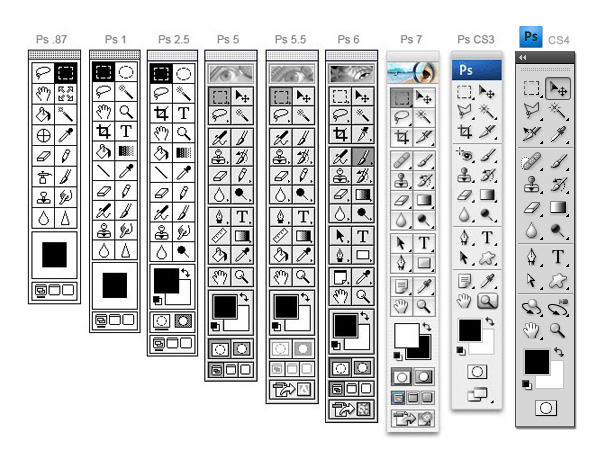
Evolution of PS Toolbar
There are various websites that makes it available for the users to draw and edit on Photoshop. Some of the best websites to master photoshop skills are:

Photoshop Learning Destinations

#1. Psd.Tutsplus

psd.tutsplus.com is an obliging site to learn how to work with Photoshop. It has a list of articles which is applicable for the beginners and advanced learners.

#2. PhotoshopLady

Photoshop Lady
The PhotoshopLady.com has a roll of tutorials on several topics such as 3D effect, abstract effect, drawing effect, text effect, photo effect etc to practice Photoshop.

#3. Abduzeedo

abduzeedo
Abduzeedo.com is preferred for inspirational designers. Along with some of the best tutorial tips for Photoshop, lessons on Illustrator, Pixelmator and Web Design software.

#4. PSD Vault

PSD Vault has fine resources on Photoshop. Tutorials from basics to advanced along with on text and photo effects. It also includes VIP exclusive Photoshop tutorial.

#5. Tutorial9

Tutorial 9
The Tutorial9.net has fine tutorial lessons and also free downloads of fonts, icon packs, photoshop brushes, texture packs, vector packs, UI & graphics etc.

#6. Pixel2Life

Pixel2Life.com provides a tutorial for every week. Along with photoshop, it has lessons on Adobe Flash, 3D Studio Max, PHP coding etc.

#7. Adobe Tutorialz

Adobe Tutorialz
The AdobeTutorialz.com covers all the needs on studying to use Photoshop. The lessons are worth to be practiced.

#8. Textuts

Textuts
The Textuts tutorials are of great fun to have with text effects and techniques under Photoshop. The study would help both the beginners and advanced learners.

#9. PSDfan Extra

PSD Fan
The PSDfanExtra.com provides teachings on text & photo effects, icon & web design. Offers articles on 30 minutes re-design concepts in Photoshop and also supplies downloads of textures, icons, brushes etc.

#10. Luxa

Luxa
Luxa.org grants tutorials along with videos. The lessons are featured and provides enough knowledge on Photoshop.
I believe this list helped you in lots of ways. Share your favourite Photoshop Learning Destinations with us through comments!